
Using Check In QR Codes
Speed up your on-site badging process with check-in QR codes.
If you're using QR code readers to print badges, Amego’s Check-In QR Code feature can help speed up the process.
How to Enable Check-In QR Codes
- Go to Settings > Basics in the CMS.
- Set Use Check-In QR Code? to Yes.
- Define the activation window by setting the Check-In Begins At and Check-In Ends At times. The QR code will only be active during this window.
How It Works
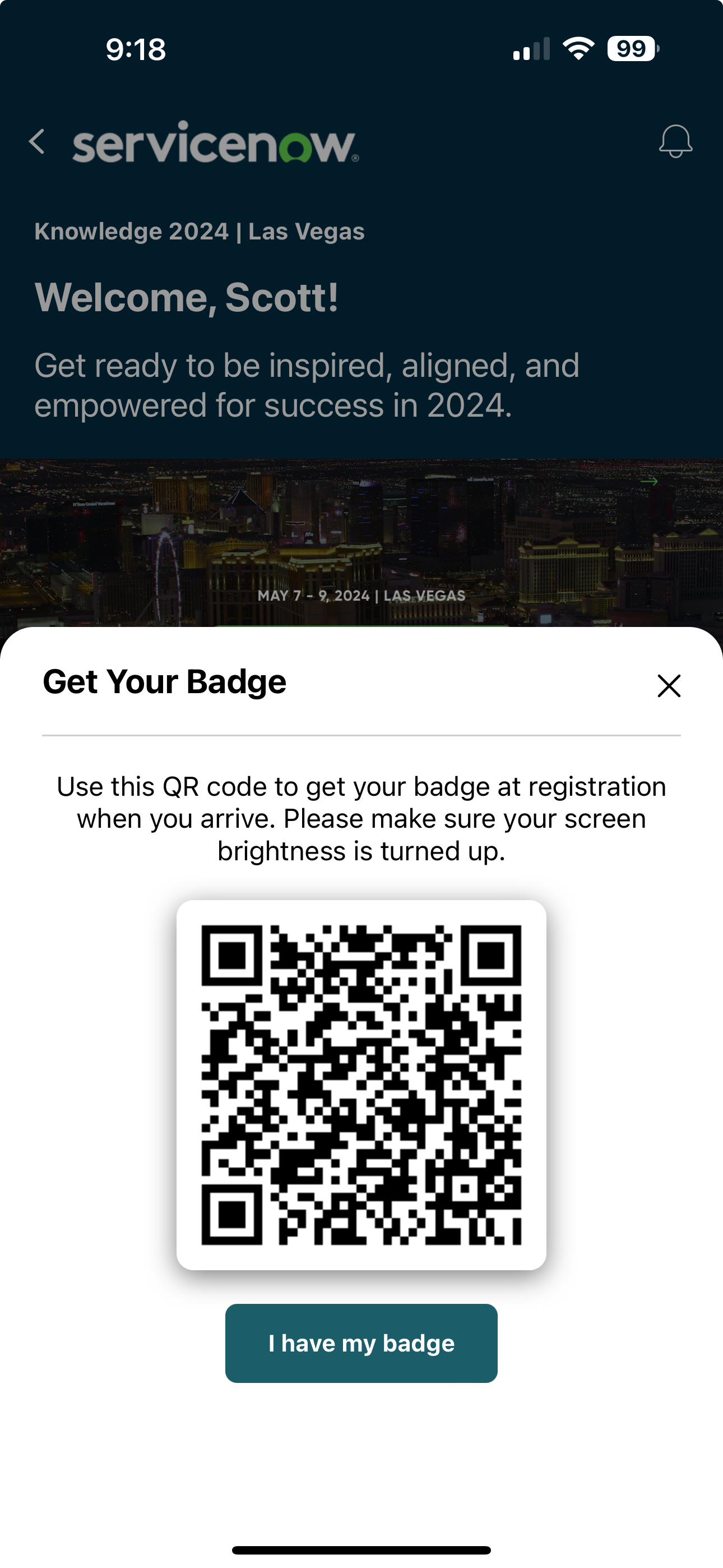
- Once enabled, whenever an attendee opens their app during the designated time, a check-in QR code will automatically slide up at the bottom of the screen.
- If you are using an EMS integration, the QR code contains the registration ID, but let us know if your setup requires a different value.
Attendees can easily scan the QR code at a check-in station to print their badge.
- After scanning, the app will verify the attendee’s check-in status with your EMS.
- Alternatively, attendees can tap "I have my badge" to dismiss the QR code slider permanently.
Testing Reminder
To ensure smooth operation, test the feature with your EMS integration while onsite.
Did this answer your question?