
Click here to watch a quick video highlighting the importance of carousels and its features. This guide will help you maximize its functionality and get the most out of your carousel feature.
Adding Carousels to Home
Amego supports carousels that can be added to your home screen. Carousels are horizontal images that can be tapped to go into a detail view - think of them as Netflix-style strips that you can easily add to home.

To add a carousel, go to Screens > Home > Select Content and click on New Home Screen Item, then make sure Carousel is selected and click Create:
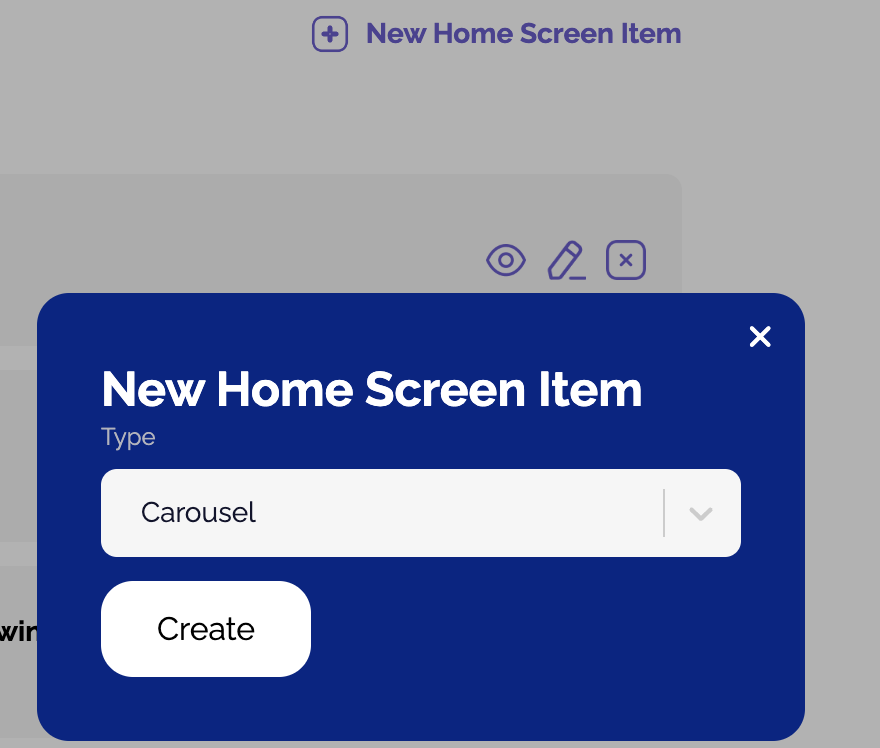
On the form that follows you'll see that you can set up a carousel for a variety of content types:
Content Types
Article > Create a carousel of articles. Make sure you have an image on the Images tab for each article.
Session > Create a carousel of sessions. Uses the landscape image from the Images tab of each session.
Tip 💡 Make your top sessions 'featured' and they can be easily selected for carousels.
Speaker > Create a carousel of speakers. Uses the square image from the Images tab of each speaker.
Tip 💡 Make your top speakers 'featured' and they can be easily selected for carousels.
Sponsor > Create a carousel of sponsors. Uses the logo image from the Images tab of each sponsor. Tip: make your top sponsors 'featured' and they can be easily selected for carousels.
My Agenda > Create the 'Up Next on Your Agenda' widget that shows the next 3 things on the attendees agenda.
Carousel Settings

Important Notes:
- Add a Section Title above each carousel to help them stand out for attendees.
- Make Auto Rotate active if you want to have items move without attendee action.
- We recommend a maximum of 12 content items in a carousel for best performance.
- On the Order Content screen in Home, you can move carousels up or down to position them on the screen.
