
Settings: Sponsors
Managing sponsor settings.
Amego offers a few simple settings to help manage your sponsors screen, which is automatically built as a screen with logos organized in levels:
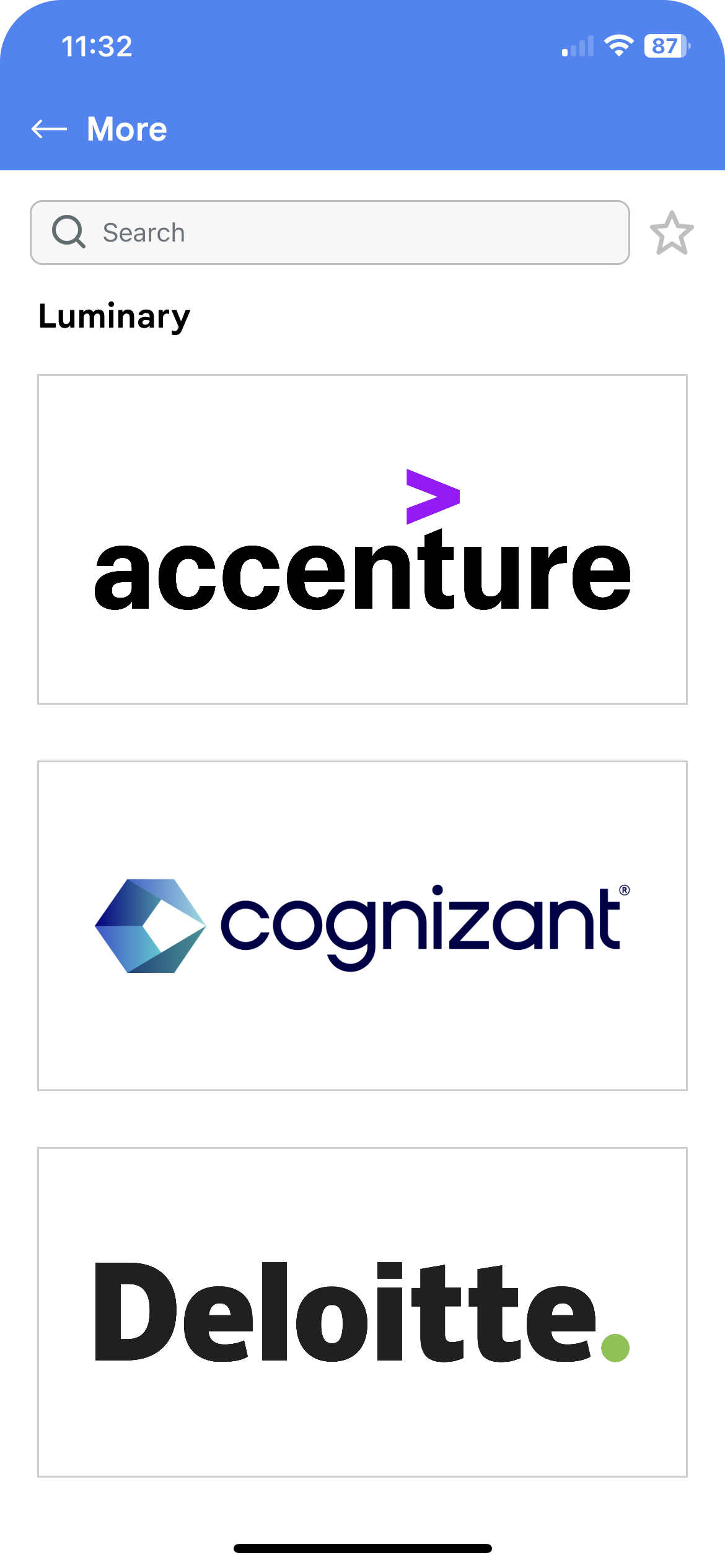
In Settings > Sponsors > Basics, you will typically have these options:
Basics
Setting
- Tap Target - In the above list view, our default behavior is to have the sponsor logo lead to a sponsor profile when tapped by an attendee. You can change this to go directly to the sponsor's URL if desired.
- Enable Chat - In the sponsor profile you can enable chat. Any attendee who views the profile can leave messages in what is effectively a group chat in which the sponsor can participate.
- Enable Digital Leads - Amego offers attendees a simple way to 'request more information' from the sponsor. This is a simple button added to the profile that results in a 'digital lead' being added to the sponsor's record in our CMS, which you can export and deliver post event. Note: this is not a lead retrieval system. For more advanced lead retrieval, reach out to us and we can connect you to an Amego partner.
Levels
Additionally, you can edit sponsor levels in the 'Levels' tab. If you are connected to an EMS, these levels are brought over via API. Any edits you make here could be overwritten by the API.
You can order the levels here to create the desired stack ranking for the above screen.
Note: sponsors can be added to and organized in the Sponsors screen in Screens > Sponsors.
Did this answer your question?