Looking for more tips on completing your quest? Please click here to watch a video with helpful pointers and additional information.
Quest is the name we've given to our fun, native engagement system within Amego.
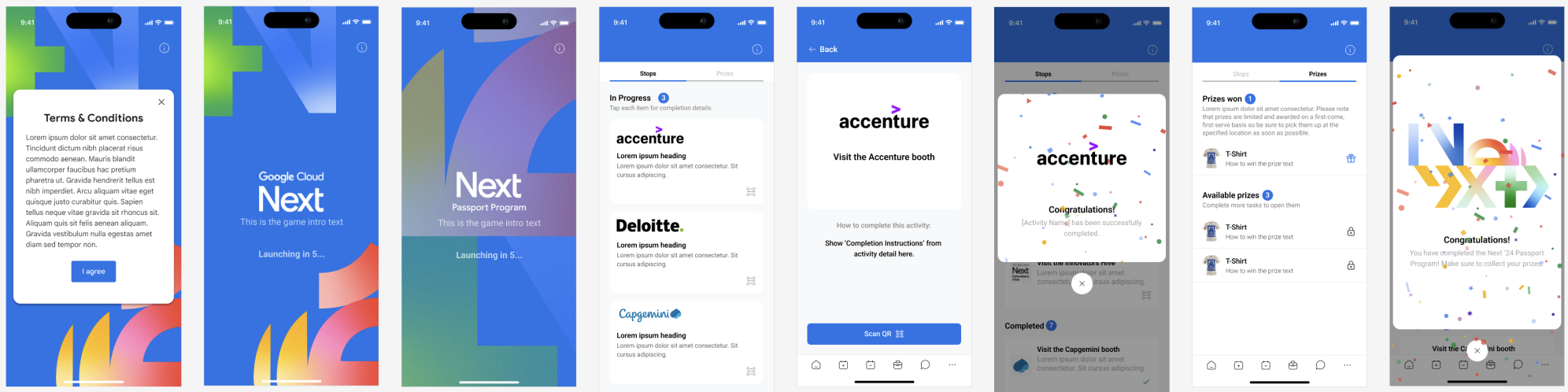
Quest 101
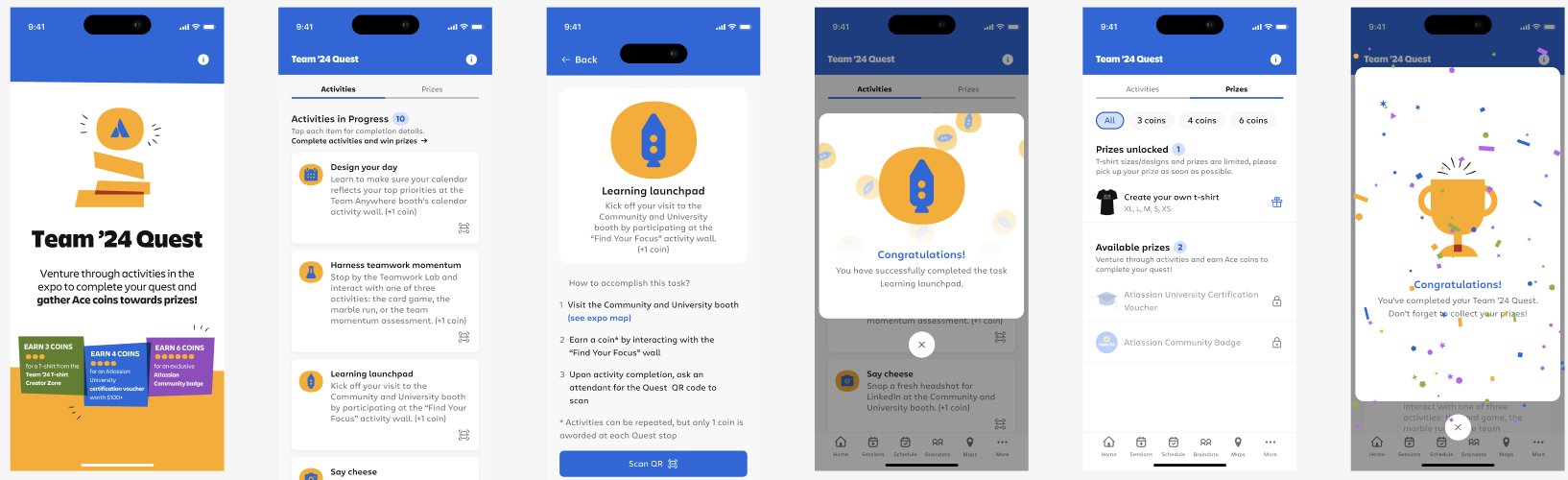
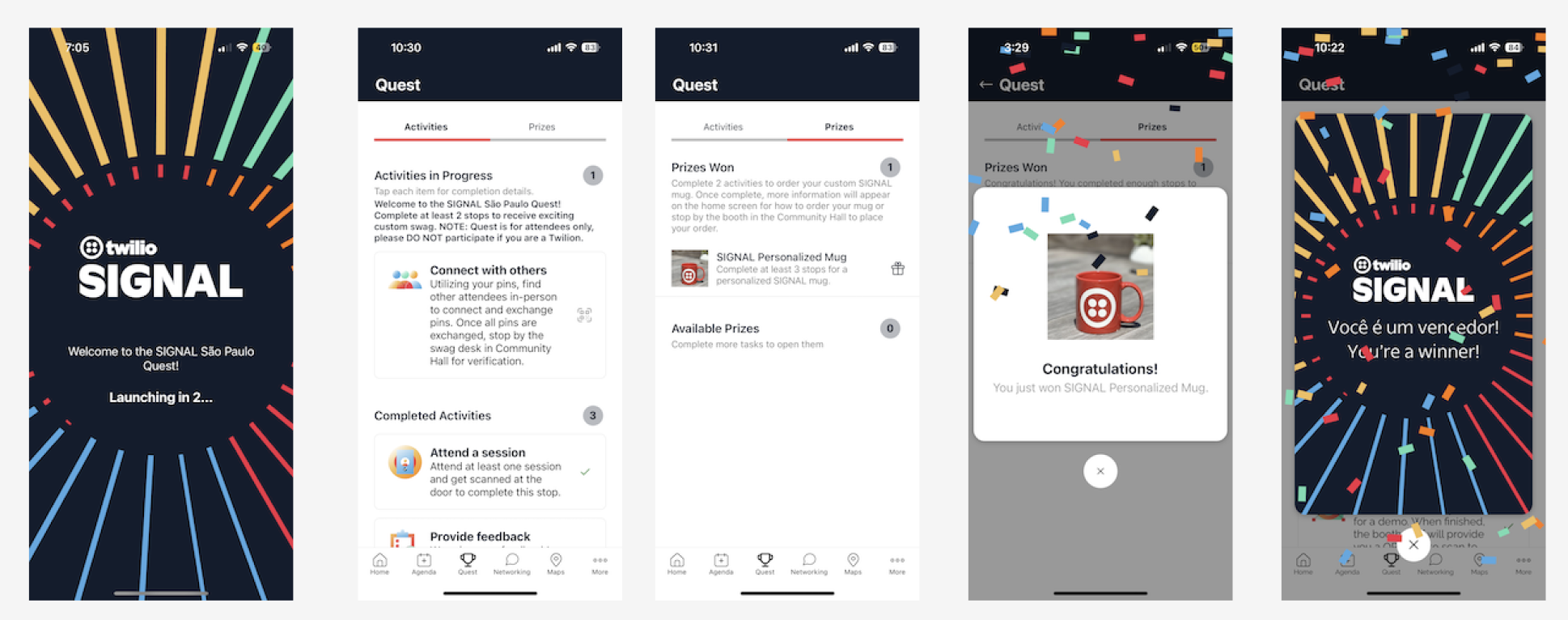
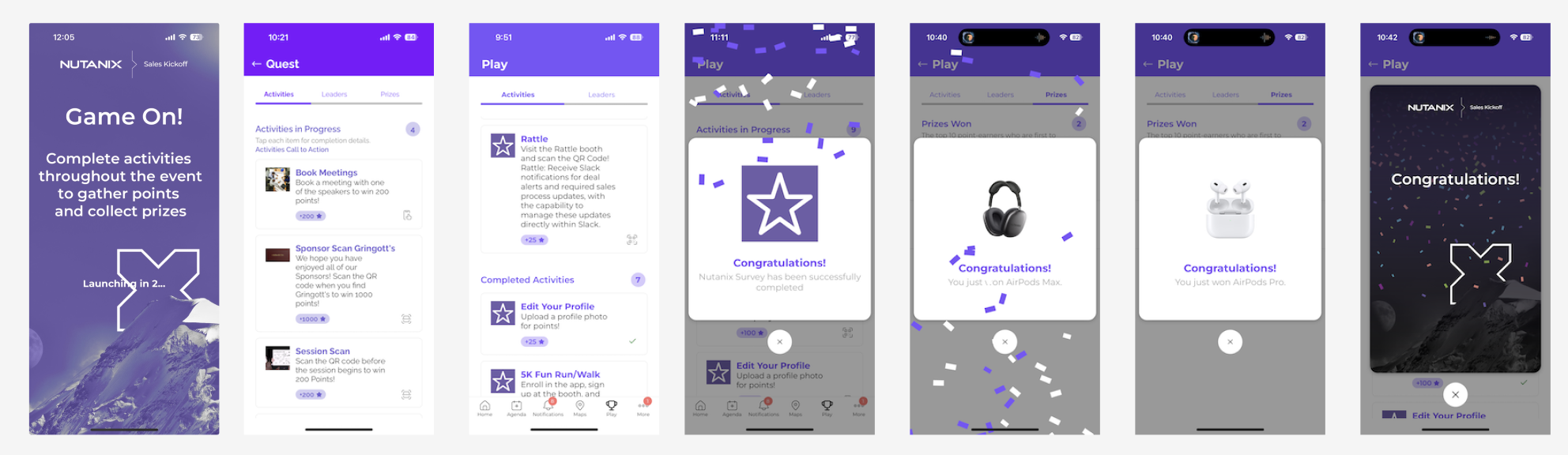
Quest is a game that allows attendees to view and complete a number (2-10) 'stops'. Each stop includes an action that you as the event organizer wishes the attendee to take during your event. As stops are completed by the attendee, we show a celebration and mark the stop as completed. When all stops are completed, we show the quest as completed, along with a 'you did it!' message.
If you'd like Quest completions to power a gift redemption solution, like a scanner, please let us know.
Activity Tracking Options
There are three types of activity tracking:
1. QR codes:
- This activity is triggered when an attendee scans a QR code that has been configured within the platform. QR codes are commonly used to drive engagement at physical locations such as sponsor booths, registration desks, signage, or activations. Use this activity when you want to encourage on-site interaction or guide attendees to specific content or experiences. Best for: scavenger hunts, sponsor activations, onsite check-ins.
- Important: While setting up the QR codes, we recommend using all lowercase and no spaces to ensure your code is easily scanned. ie. photobooth2
- Use qrcodegenerator.com (or any generator) to create the QR codes. Select "Text" as the QR Code Type and enter the text value of the Activity to generate your QR code. Then add that value to the Activity in the CMS. Onsite when your attendees scan the QR, the activity will be completed.
2. In app Engagement:
- Survey:
- Complete – Specific Amego Survey: This activity is triggered when an attendee completes a selected Amego survey. Organizers choose which survey qualifies for the activity. Use this when feedback from a particular survey is critical or time-sensitive. Best for: post-keynote feedback, sponsor surveys, required evaluations.
- Complete – Any Amego Survey: This activity is triggered when an attendee completes any available Amego survey. It encourages overall survey participation without limiting the activity to a specific survey. Best for: increasing feedback volume, post-event surveys, general engagement.
- Session:
- Add Session to My Agenda: This activity is completed when an attendee adds any session to their personal agenda. It encourages attendees to plan their schedule in advance and engage with the agenda early. This activity does not require session attendance—only that the session is added. Best for: pre-event engagement, agenda adoption, early planning incentives.
- Networking:
- Connect with Attendee: This activity is completed when an attendee creates a new connection with another attendee in Amego networking. It rewards meaningful networking actions rather than passive browsing. Best for: networking incentives, community building, first-time attendee engagement.
- Send Networking Message: This activity is completed when an attendee sends a direct networking message. It promotes proactive communication and follow-up between attendees. Best for: encouraging introductions, facilitating conversations before or during the event.
- Schedule 1:1 Meeting: This activity is completed when an attendee schedules a one-to-one meeting with another attendee in the Amego meetings tool. It supports deeper engagement and intentional networking. Best for: attendee matchmaking, VIP networking.
- Update Networking Profile: This activity is completed when an attendee updates or completes their networking profile. A more complete profile improves discoverability and match quality within the networking experience. Best for: improving networking data quality, encouraging profile completion pre-event.
3. Scanner Engagement: An EMS integration is required for Scanner engagements, please reach out to us to confirm this is in place for your event.
- Session Scanning: When an attendee is scanned, they will complete the stop.
- Check In – Any Session: This activity is completed when an attendee checks into any session onsite. It rewards general participation rather than attendance at a specific session. Use this option when you want to incentivize overall session attendance.
- Check In – Specific Session: This activity is completed when an attendee checks into a designated session onsite. The organizer selects which session qualifies for the gamification rule. This option is ideal for driving attendance to high-priority sessions such as keynotes, sponsored sessions, or required trainings. Best for: keynote attendance, sponsored education, certification tracking.
Learn More: If you'd like to know more about how to track quest activities via Scanners, check out the documentation here.
Setting Up Quest: Basics
- Name: What do you want to call the quest? 'Quest' is just an Amego way of talking about it - you can name it anything you like.
- Character count: 25
- Logo: Create a PNG logo for the game, ideally something fun that includes the name.
- Image specs: Any Size
- Game Intro Text: Help attendees understand the value in playing the game with a simple description.
- Character count: 100
- Activities Call to Action: Explain how to play and win the game
- Character count: 100
- Prize Won Text: Show attendees what they will win when they complete all stops. We recommend against a game without prizes.
- Character count: 100
- Image specs: 512x512 Square, PNG
- Terms & Conditions:
- Character count: 200
- Audience: Who is allowed to participate in the game
Learn More: If you'd like to know more about creating multiple Quests based on Attendee Types, check out the documentation here.

Creating Activites
You can create 2-10 Quest activities/stops. Try to make it easy for an attendee to complete each stop, and try not to add to many stops. We recommend around 6 stops and only more if the additional stops are very easy to complete, like taking a survey. You'll need to have 2 images for each stop and have in mind how attendees can complete the stops, either by scan or in-app.
- Activity Name: Show attendees to their next activity with a clear activity name
- Character count: 25
- Completion Instructions: Help attendees understand how to complete this specific activity
- Character count: 150
- Reward options:
- Points: how many points does an attendee earn for completing the specific activity
- Stop: completion of the activity unlocks the stop

Creating Prizes
- Prize Name: Alert attendees of all potential prizes
- Character count: 25
- How to Win text: Explain to attendees what it takes to win this prize
- Character count: 100
- How to Earn:
- Points/ Stop
- How many Points/ Stops does it take to earn

Quest Design
- Game Intro screen logo: Includes Game name and steps to participate
- Image specs: 1080x1920, PNG
- Activity images: an off version and an on version (completed) for each activity
- Image specs: 512x512, PNG
- Prize images: Images of Prizes (if applicable)
- Image specs: 512x512, PNG
- Confetti icons: Form a celebration confetti after each stop or game completion
- Notes: Color selection available from branding in Design > Colors
- Completion screen: a portrait image used to celebrate the game being completed by the attendee
- Specs: 1080x1920, PNG or GIF

Quest Intro screen

Final Quest Complete screen

Leaderboard
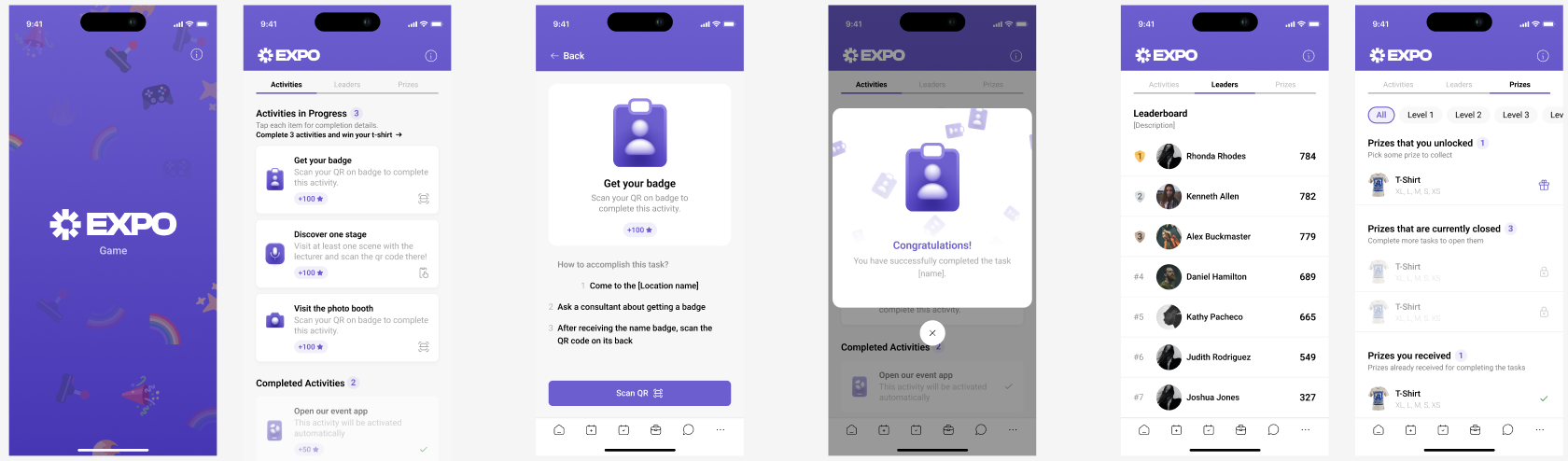
For Quests that are using points to determine winners, we now offer a Leaderboard! The Leaderboard is found next to the Activities tab in the game and shows the top 10 point holders + where you stand.
This is a great way to create a fun competition amongst the attendees.

Managing Quest from the CMS
Learn More: If you'd like to know more about managing Quest from the CMS, check out the documentation here.
Onsite Game Metrics
For each game, the following data is exportable in the CMS:
- Quests started
- Quest stops completed: with attendee metrics
- Quest overall completed
Quest Customer Examples: