Overview
The More screen is the utility screen in the app. We can put a link to just about anything in the app or out to the internet here, and some of those links could even be authenticated so your attendees don't need to log in again.
You can add as many items as you like to More and even create Section Headers.
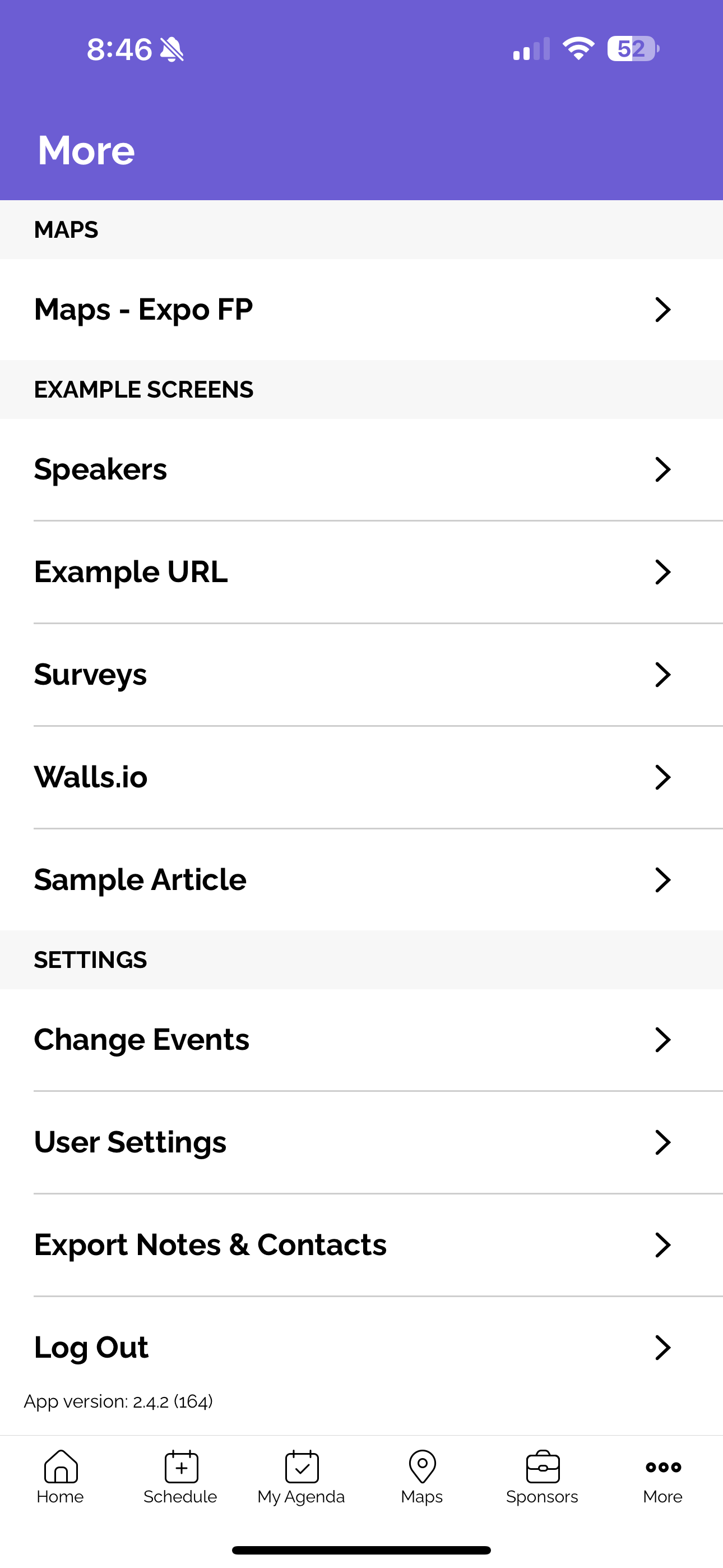
More Screen: Settings
At the bottom of the More screen we have our Settings. These are standard items and cannot be edited:
- Change Events > If the app has multiple events, allows you to change events.
- User Settings > Allows control over user settings and opt ins.
- Export Notes & Contacts > Shows a modal that sends the attendee an email with their notes and contacts.
- Log Out > Ends the attendee's session.
Customize the More Screen
Go to Screens > More, click edit.
On the Select Content page, you can click New Link to add any item to More:
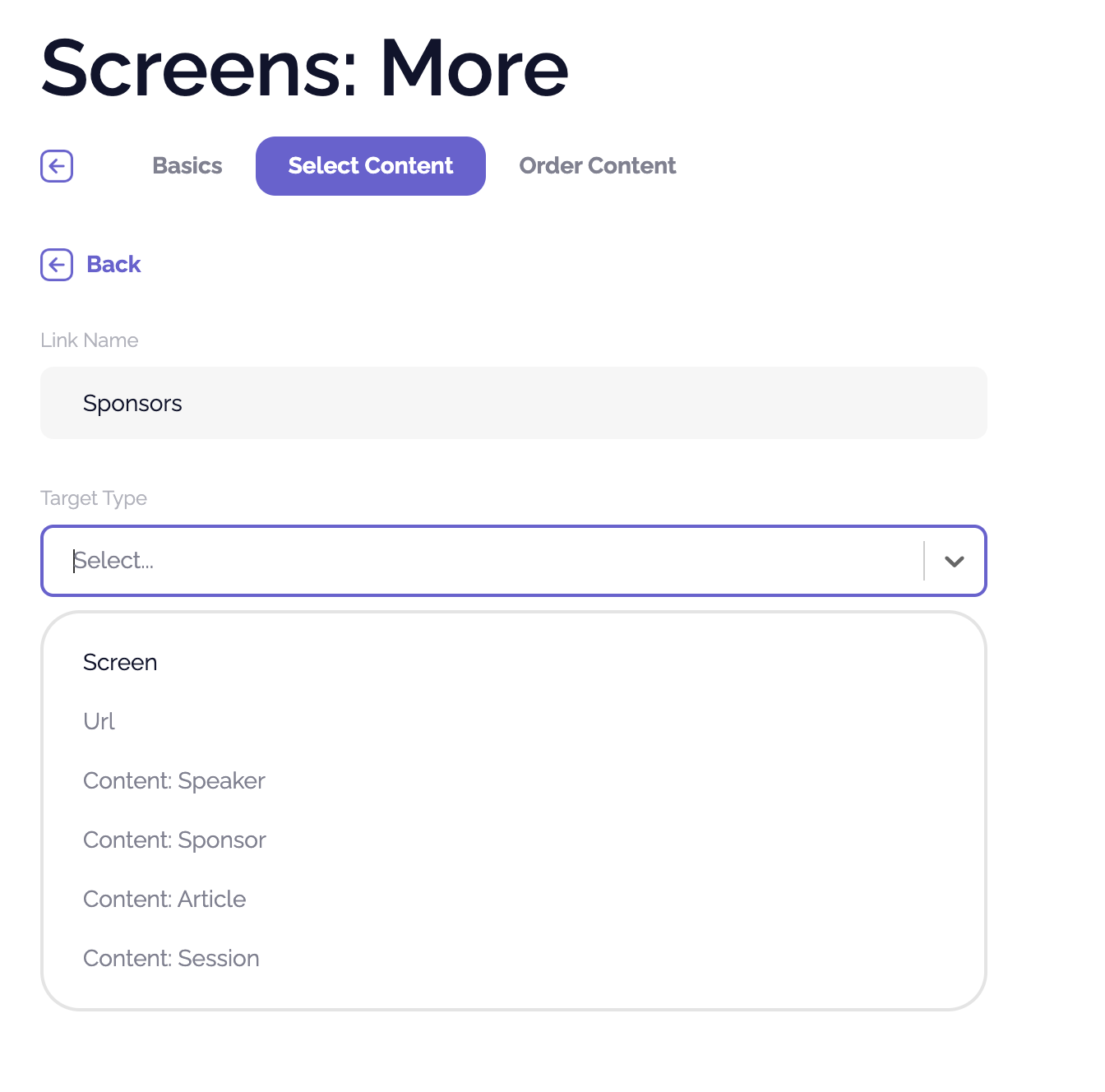
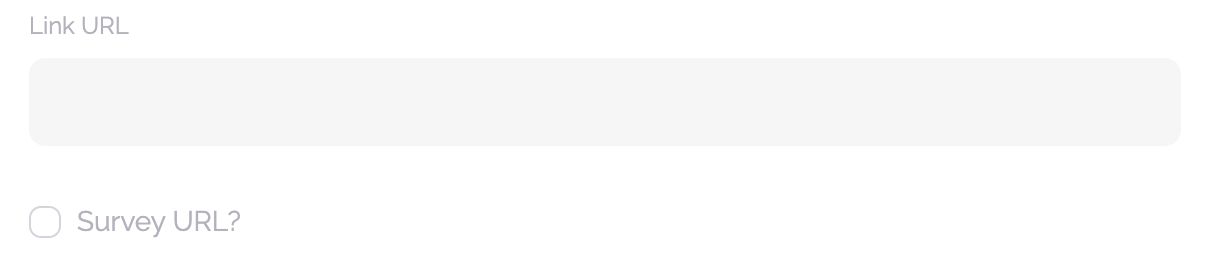
Clicking any of these 'types' above shows you additional settings to specify the screen, the url, or the content:


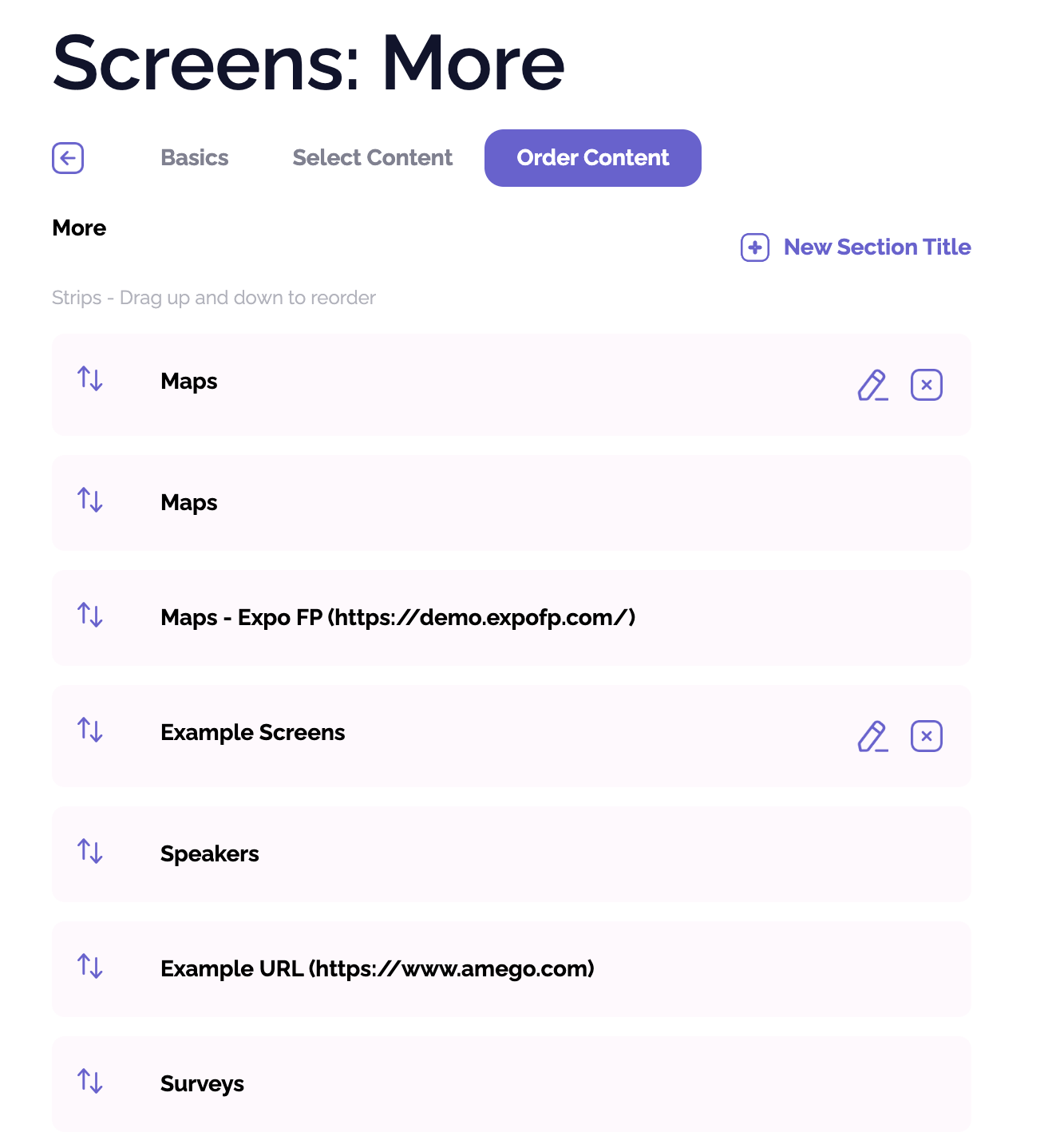
Once all your links are created, go to the Order Content tab, where you can drag and drop items:
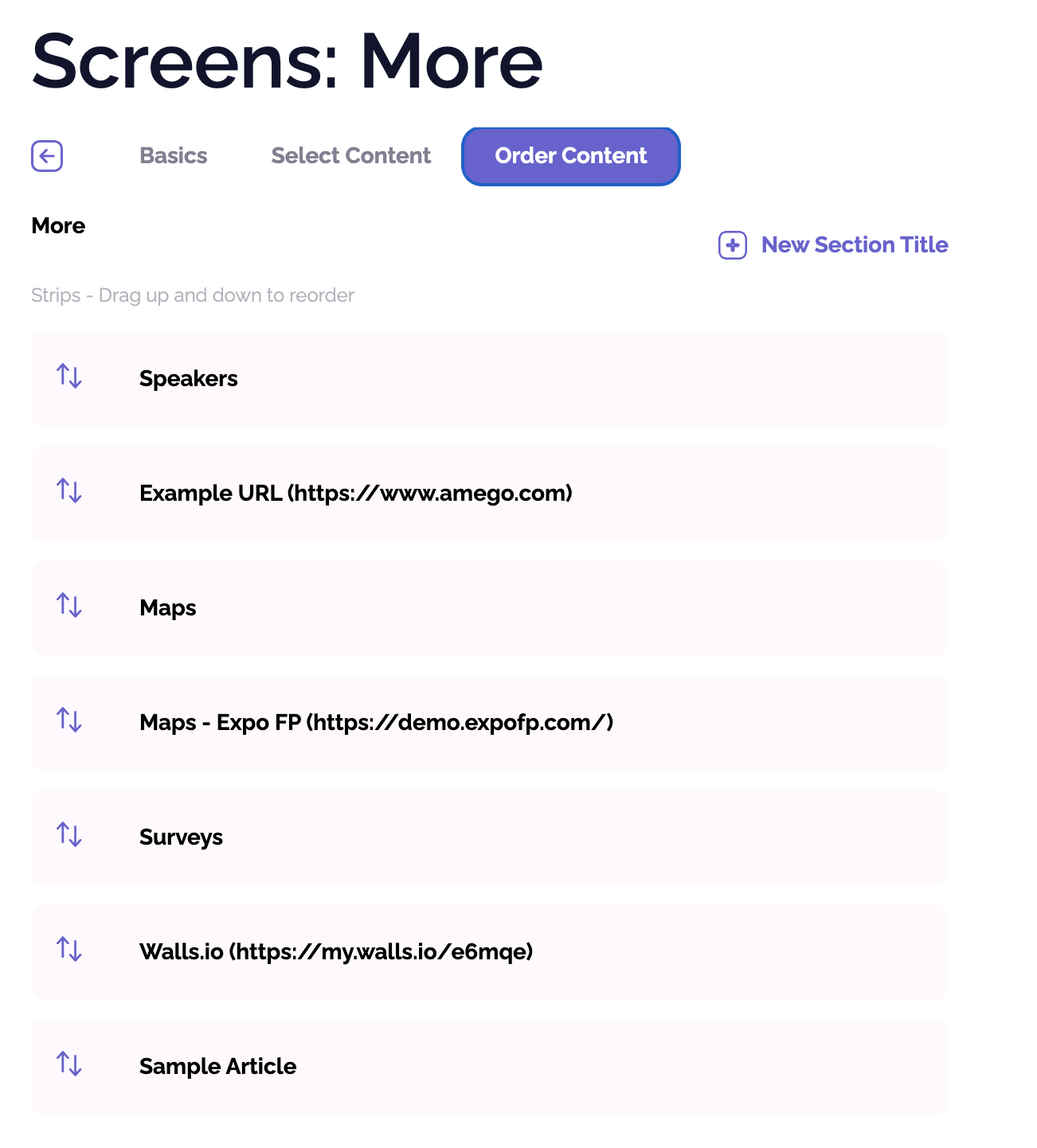
Drag items into grouping and make section headers by clicking New Section Title:
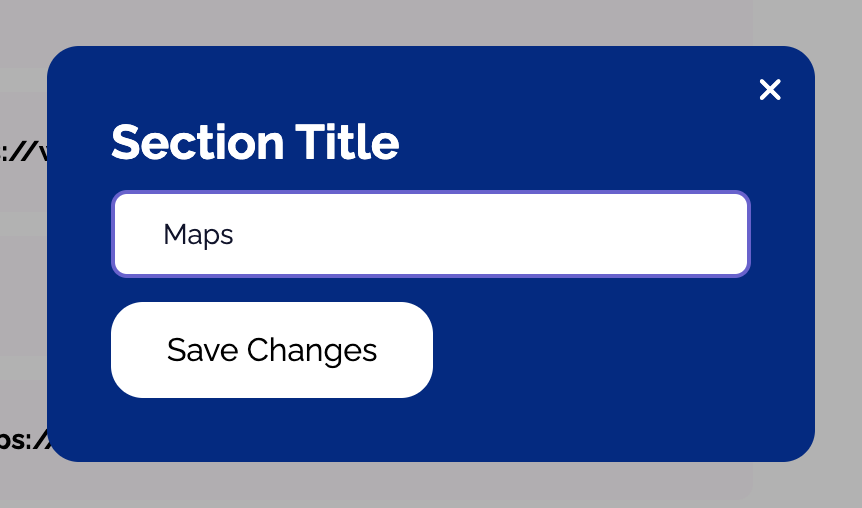
Lastly, drag your titles into place and your final More page will be set.