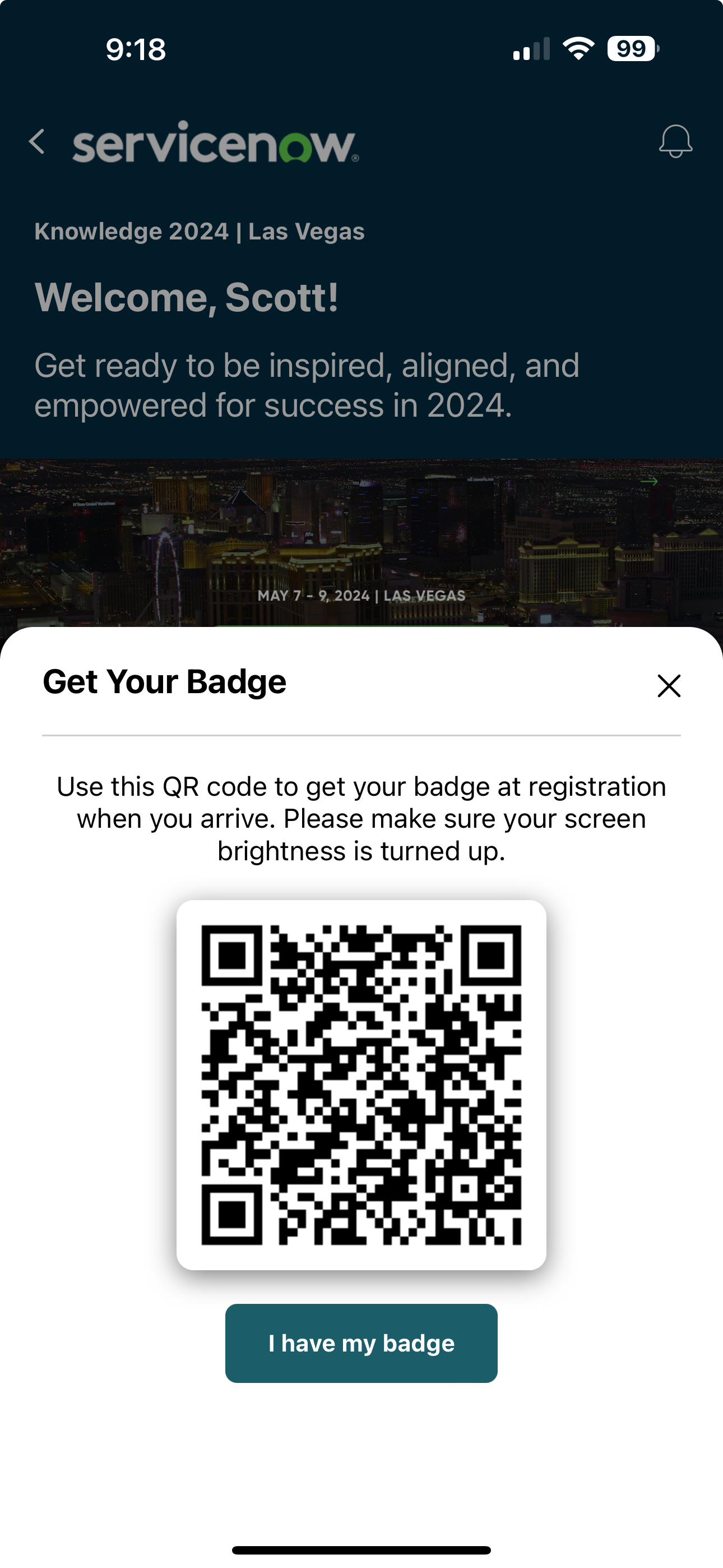
If you're using QR code readers to print badges, Amego's Check-In QR Code feature can help speed up the process.
How to Enable Check-In QR Codes
- Go to Settings > Basics in the CMS.
- Set Use Check-In QR Code? to Yes.
- Define the activation window by setting the Check-In Begins At and Check-In Ends At times. The QR code will only be active during this window.
How It Works
- Once enabled, whenever an attendee opens their app during the designated time, a check-in QR code will automatically slide up at the bottom of the screen.
- If you are using an EMS integration, the QR code contains the registration ID, but let us know if your setup requires a different value.
Attendees can easily scan the QR code at a check-in station to print their badge.
- After scanning, the app will verify the attendee's check-in status with your EMS.
- Alternatively, attendees can tap "I have my badge" to dismiss the QR code slider permanently.
Testing Reminder
To ensure smooth operation, test the feature with your EMS integration while onsite.