
Networking settings are very simple and can be managed in Networking > Basics:
Settings
- Contact List – show or hide the My Contacts screen.
- Directory – show or hide the attendee directory. Note that the options are All or Recommended, where recommended is a subset of attendees that are recommended based on attendee data.
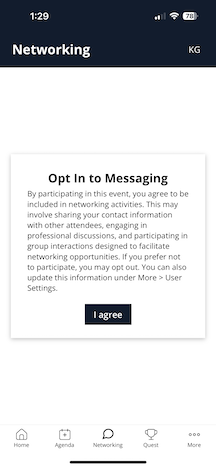
- Require Opt In – uses the opt-in text below (which can include your terms and conditions) to force each attendee to opt into networking, chat, and meetings, or not. Once opted in, attendees can opt out of meetings separately from More > Settings > My Info, if desired. There is no separate opt-out for chat only. The text can be customized.
- Enable Meetings – if meetings are enabled, attendees will have a Book Meeting button on their profile. Meeting invitations can be sent from one attendee to another, and any accepted meeting will show on the attendee agenda. Note that meetings require public spaces to be set up in Settings > Rooms.
Networking Screens
Directory: shows all registered attendees. Search and scroll to find attendees to connect with.

Contact Profile: any contact that you scan onsite or star their profile will show in My Contacts so you can easily find them, chat, or book a meeting.

Chat: chat with one or many attendees on the profile or in messages.
