
Content settings control some of the most important aspects of your app. Each setting is described below.

Basics
- Enable Favorites? – Allow attendees to "star" sessions, then filter to show only their selected favorites.
- Show Favorites in My Agenda? – Allows sessions that an attendee has favorited to show on My Agenda so attendees can see conflicts.
- Enable Enrollments? – Allow attendees to enroll in a session, which saves a seat. Note that when integrated to an EMS, enrollments are sent back to the core system.
- Session Label 1 – The small text above the session name, which can be colored and is based on content attributes (1 of 3). This is where you choose which content attribute appears as the "session pill" on the session card.
- Session Label 2 – The small text above the session name, based on content attributes (2 of 3).
- Session Label 3 – The small text above the session name, based on content attributes (3 of 3). Note that if using all 3, these labels can be cut off.
- Enable Calendar Sync – Allows the Calendar Sync feature to be available on the More screen.
- Calendar Begins – Controls the first day shown on Library. Be sure to make the start time early in the day.
- Calendar Ends – Controls the last day shown on Library. Be sure to make the end time late in the day.
- All Tabs Options – If you want an ALL tab that shows all content, you can have it be chronological, alphabetical, shown after the last day, or disabled.
- Default Survey Template – Save time by enabling a default survey template for all sessions. If you want a different survey for some sessions, go to session > notifications and replace the default survey template with another.
- Hours Separators – By default, the Library groups sessions under an hour header. For events with little content this may not be necessary, so you can disable it here.
- Session Status – We include session status for the attendee by default above the enrollment button, with text like "Seats available" or "Session is full." You can disable this if desired.
- Enable Recommendations – TBD.
- Enable Meetings – Allows Networking meetings to be turned on or off depending on the event.
- Duration Format – Select the duration format for sessions that best fits your event: Start time - Duration, or Start time - End time.
- Default Agenda Style – Customize your My Agenda view by selecting the default style for your event: Calendar or List view.
- Session Enroll Cutoff (minutes) – At many events, scanners that control room access need their final update N minutes before the session begins. This setting cuts off enrollment before the session so an attendee doesn't enroll in something that won't be reflected in the room scanners.
Attributes
Session attributes are important for attendees because they create filters that allow attendees to refine the list of content to more accurately reflect their interests. There are two ways to create content attributes:
- When integrated, these come over from the core EMS. You should set up your attributes there.
- When not integrated, set them manually. To set the attributes manually, click New Attribute Group, then go through the settings.

Setting - New Attribute Group
- Name - Give the attribute a name. Note that this will be visible in Filters.
- Parent Group - You can have parent-child attribute groups if you like. If so, create the Parent Attribute first and then select the parent group here.
- Show in Filters - Choose whether you want this to show in filters or not (usually yes).
- Is Public - Choose whether it should show on the session detail screen or not (usually yes).
- Color - Choose a color, to be used in Session Labels as shown below on the Library screen.
- Icon - Coming soon.

Once created, add the values for the attribute and hit enter after each value, then save at the bottom of the form:
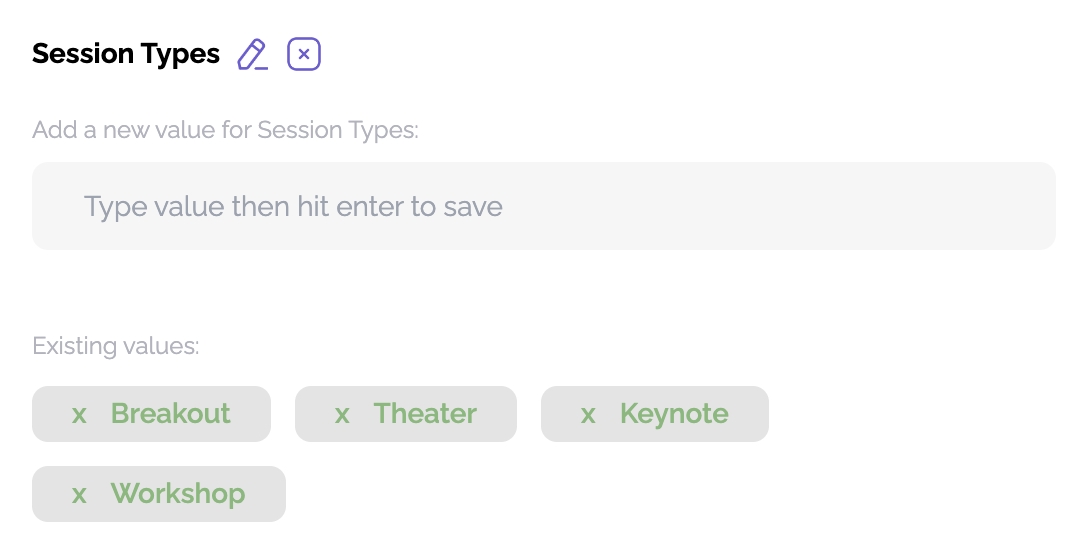
You can set the order in which these appear in the library by clicking Toggle to Order Attributes.

Images
You can save time by setting default images for sessions. Any of these can be replaced for a single session if needed.
- Default Session Landscape Cover Image (1280x720 PNG, JPG, or WEBP): the image used at the top of a session detail.
- Default Session Featured Background Image (878x220 PNG, JPG, or WEBP): when a session is featured, it uses this background image.
- Default Speaker Profile Picture Image (512x512 PNG, JPG, or WEBP): when a speaker has no photo, it uses this image.